An artboard is like a canvas inside an Illustrator file. You can have up to 100 canvases within a file, they can overlap and even sit on top of eachother, sharing Artwork.
You can use canvases to place frames of animation or special views in a document, and swich between those views by double-clicking on the art-board in the artboard panel.
Creating a new artboard
You can define the artboards of a document when you first create the document,
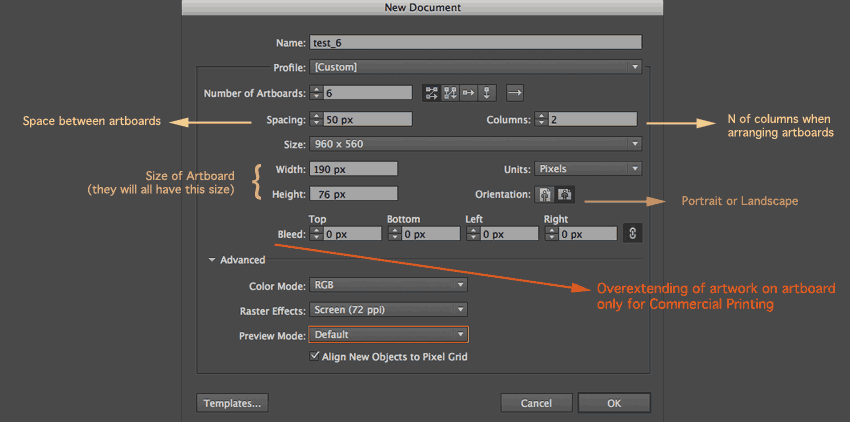
In the profile area you choose the type of out-put you will want for the file. illustrator will create pre-sets in the following categories
depending on your choice,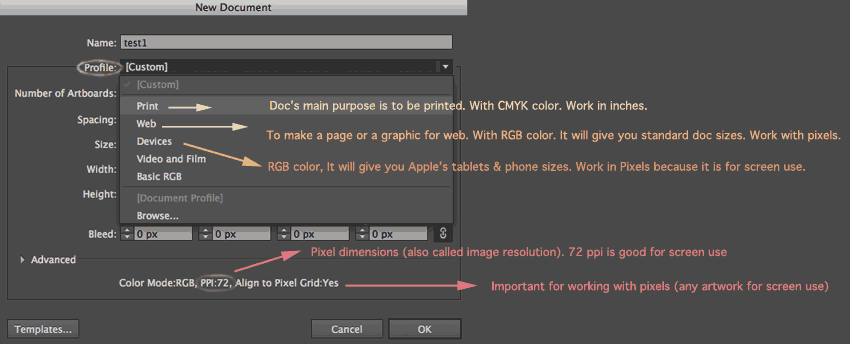
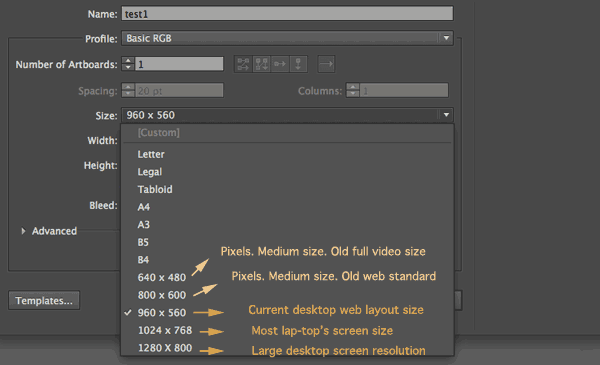
When you define the size of htose artboards there are pre-sets: you will find the standard printing pre-sets (in US: Letter, Legal and Tabloid, in the EU A4, A3, B5 and B4), then the screen presets in pixel-units.
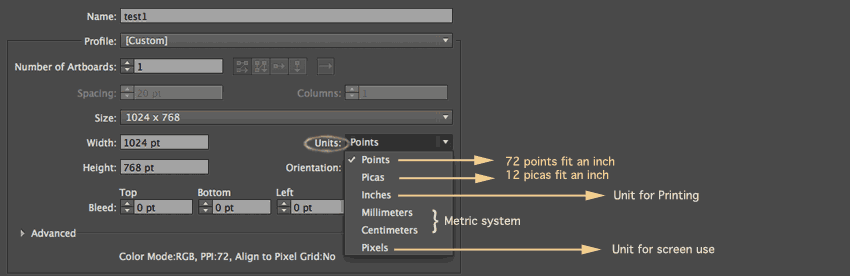
The unit you choose will most of the time match the type of output you want. In the MAT department we mostly work with pixels.
Edit Artboards
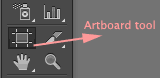
You can change the number of, position and dimensions of artboards inside a document by using the Artboard tool in the Tool-bar (see pic Left). Click on each artboard to edit.
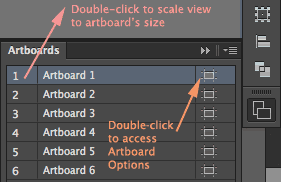 Remember to use the Artboard-panel: You can name artbards(double-click on artboard number), easlily select artboards and even change the document's scale view from the Artboard panel (see pic Right). Real panel placed also at the extreme right of your interfacein Illustrator.